



ITP Ticket Helper: Auto-Scan, Captcha Solving & Seat-Lock Alerts for Interpark / NOL (English Setup Guide)
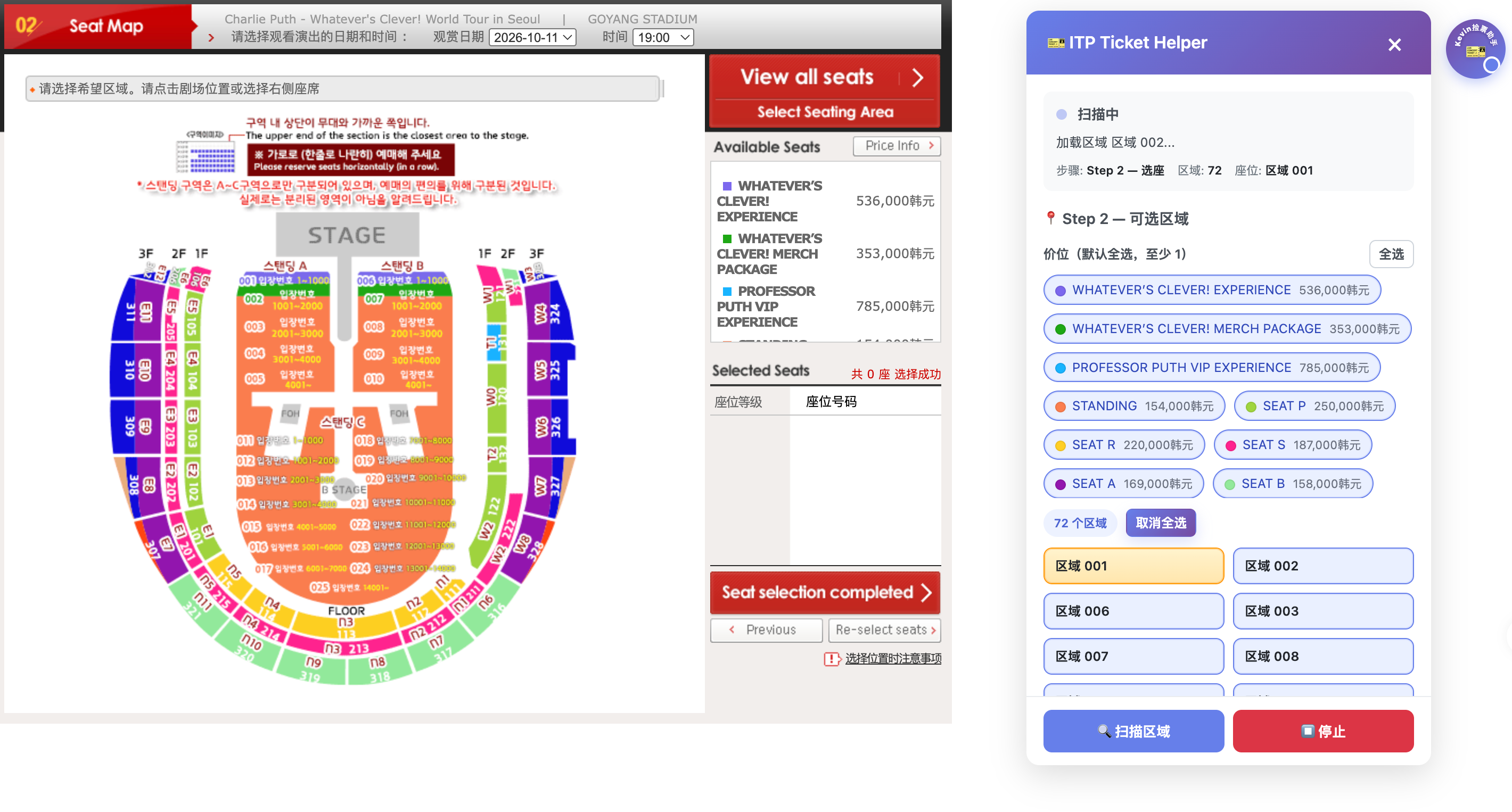
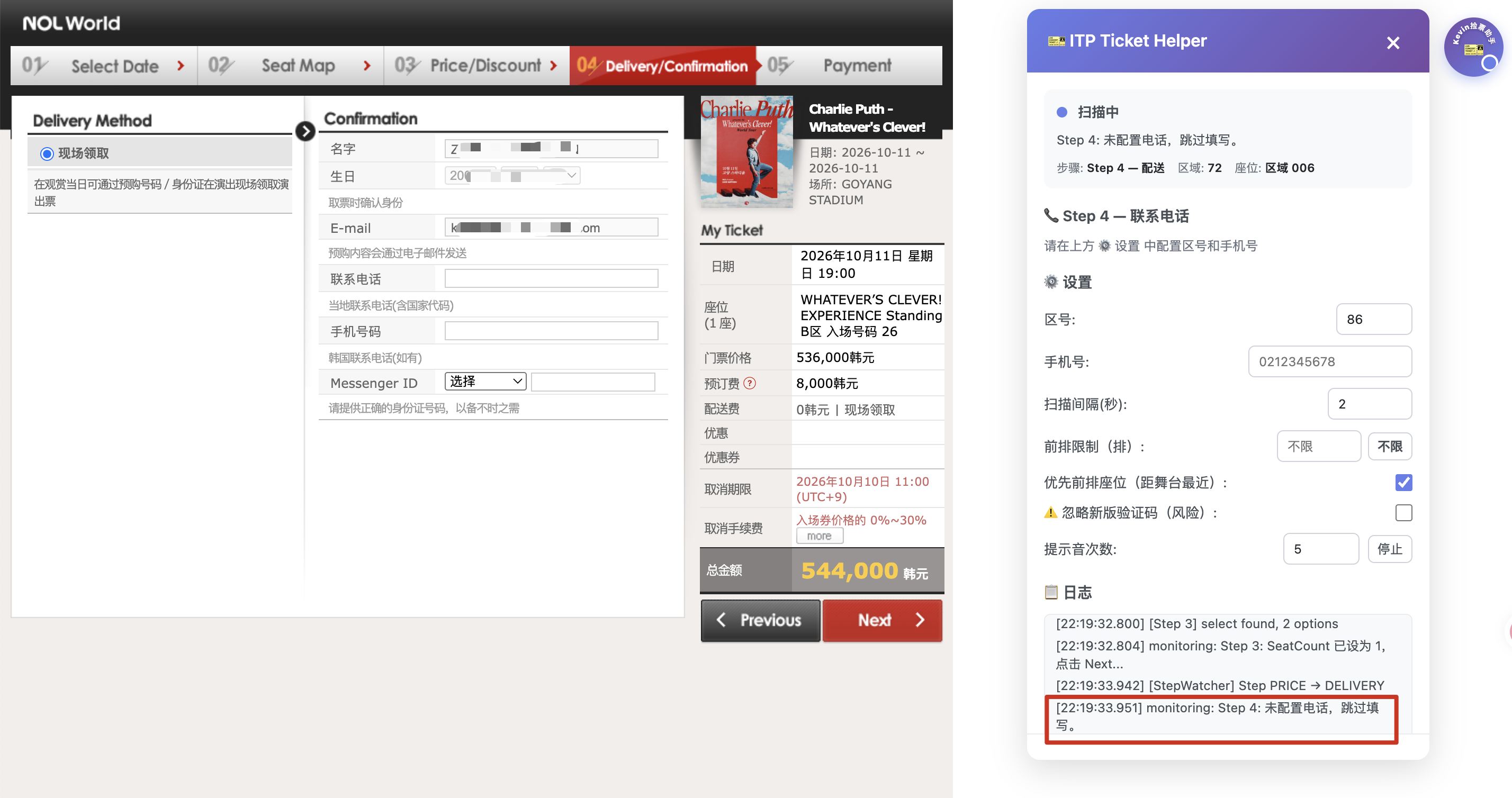
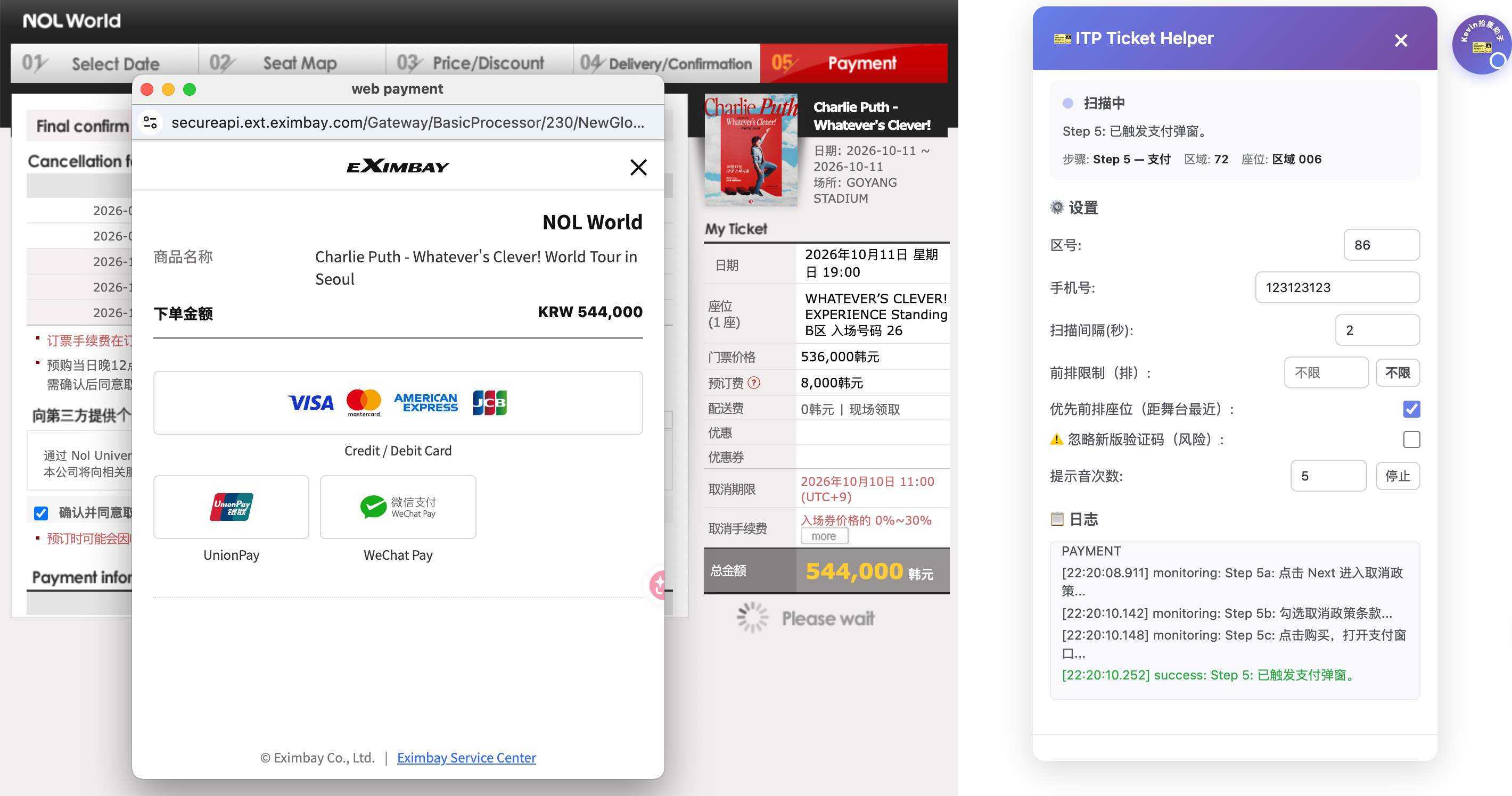
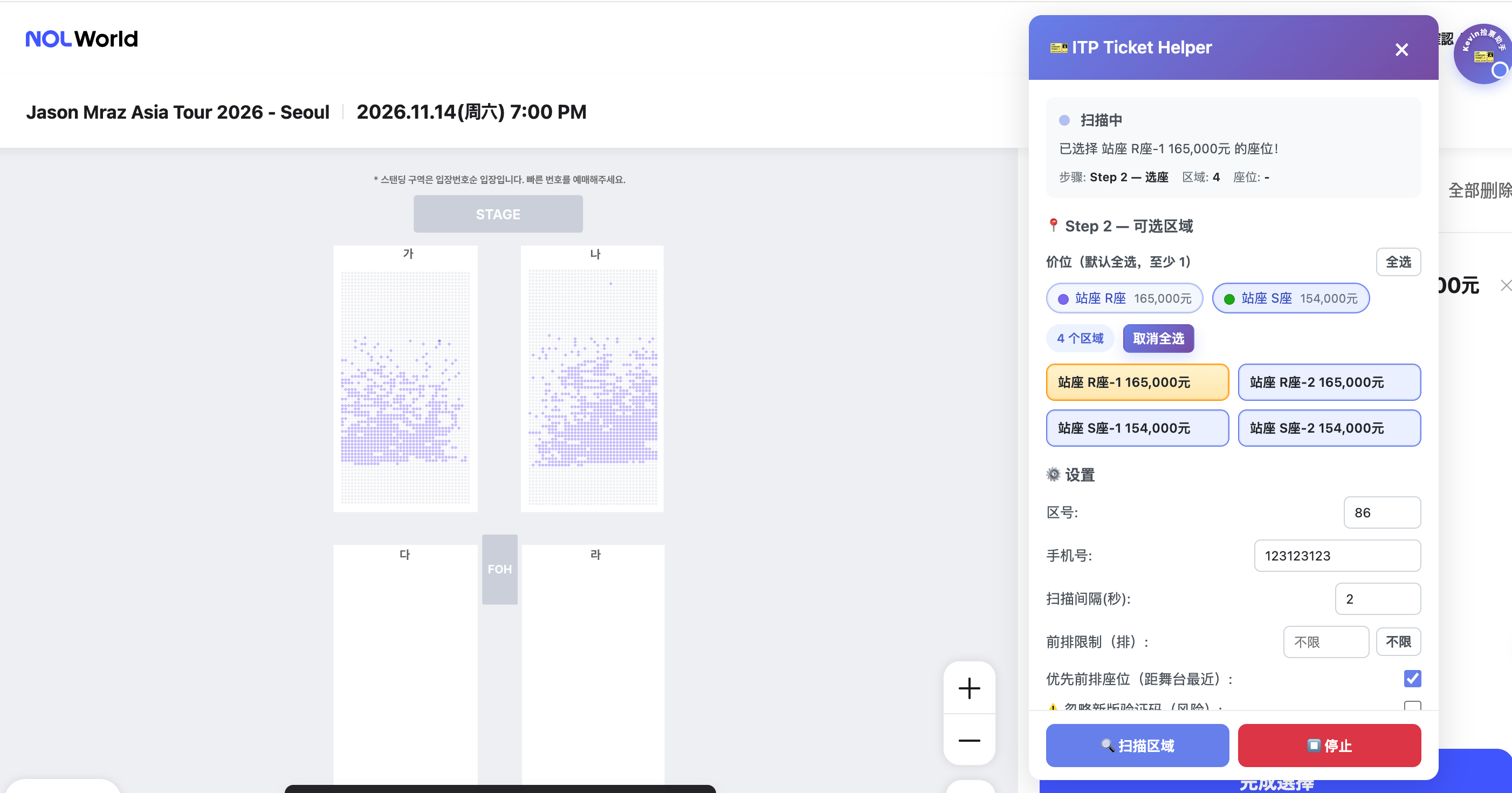
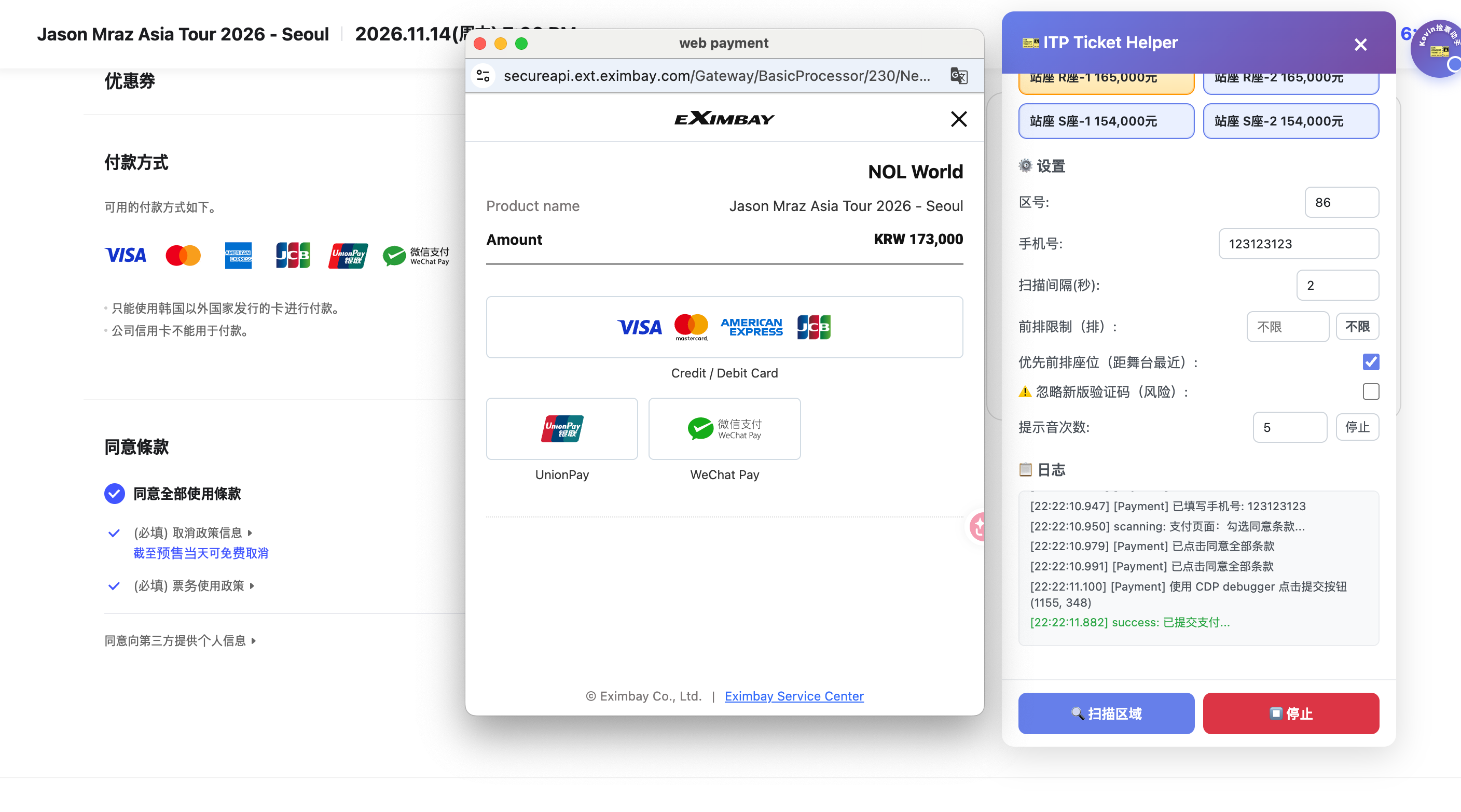
ITP Ticket Helper is a Chrome extension for Interpark Global / NOL World ticketing. It supports both the old and new seat-selection flows, auto-scans the seat map, handles captchas, auto-locks an open seat, and pings your phone the moment it succeeds — so you can hunt cancellation (refund) tickets in the background instead of refreshing for hours. Works on both macOS and Windows.
New to cancellation-ticket hunting? Read the strategy first: How to Get Sold-Out K-Pop Concert Tickets: The Cancellation Ticket Guide. This post is the setup walkthrough for the tool that does the watching.
What it does — and what it doesn’t
It does not make Interpark create tickets that don’t exist. Nothing can. What it does is remove the cost of staring at a seat map:
- Helps you move from the event page into the seat-selection flow
- Continuously scans for open zones and open seats
- Auto-handles old numeric captchas (OCR), slider captchas, and new Turnstile checks
- Auto-locks a seat the moment one in your chosen zones appears
- Advances you toward the payment step
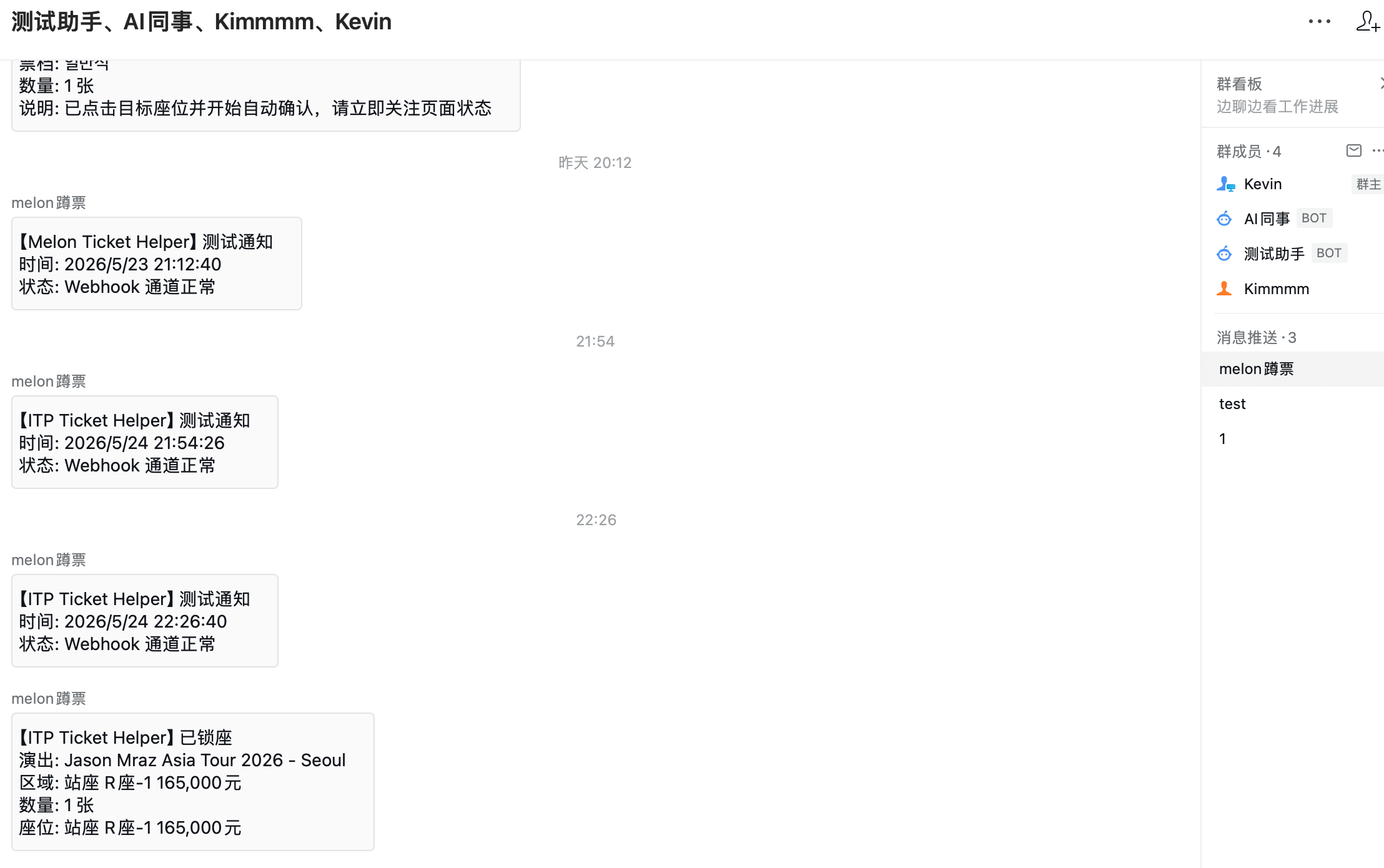
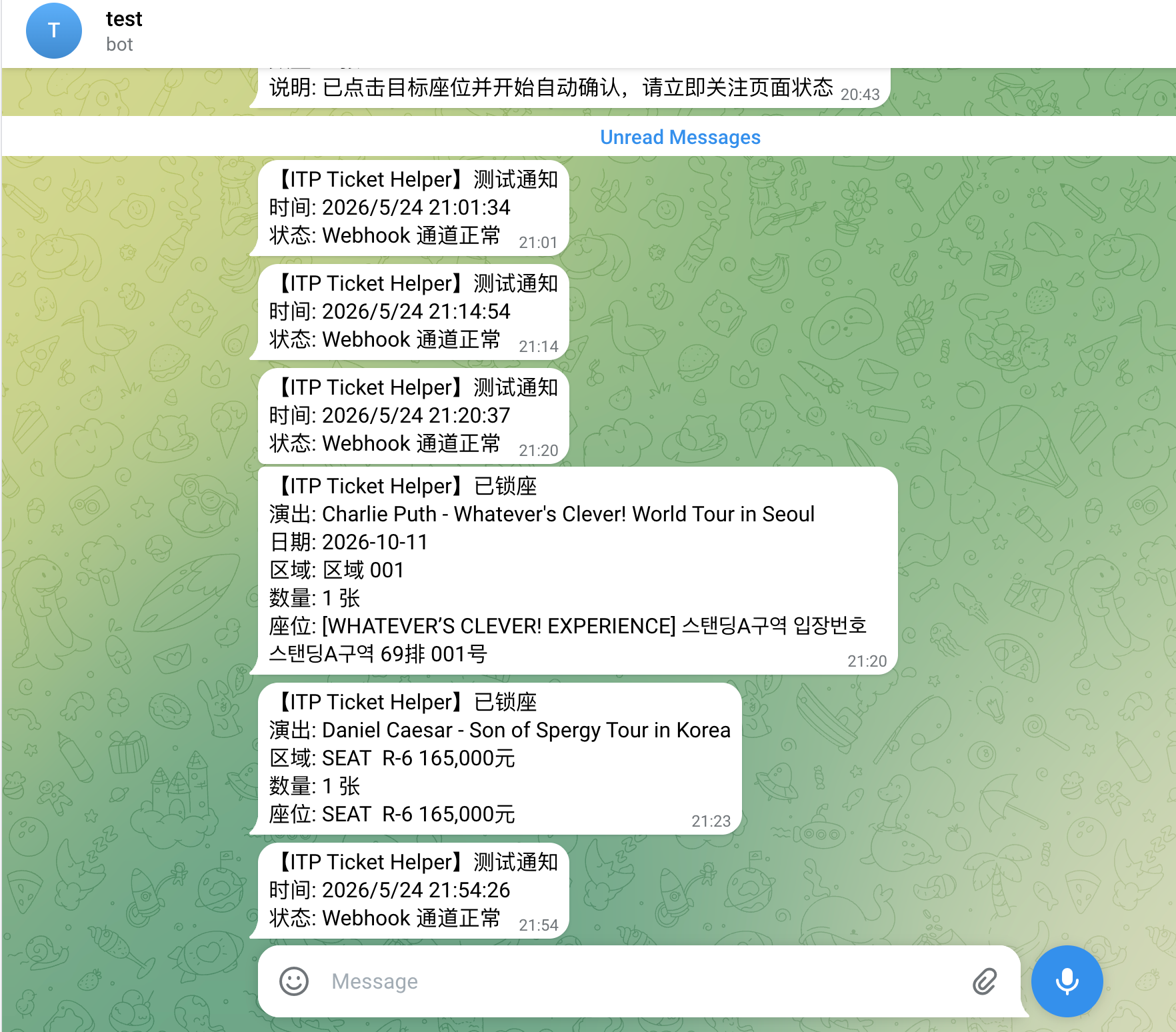
- Pushes a notification (Telegram and more) the second a seat is locked
In short: it watches more tirelessly than a human and reacts in the second that matters. Whether you can finish payment still depends on whether seats exist, how fierce the competition is, and your own payment speed and account status.
1. Install the extension
- Download and unzip the extension package.
- Open Chrome and go to
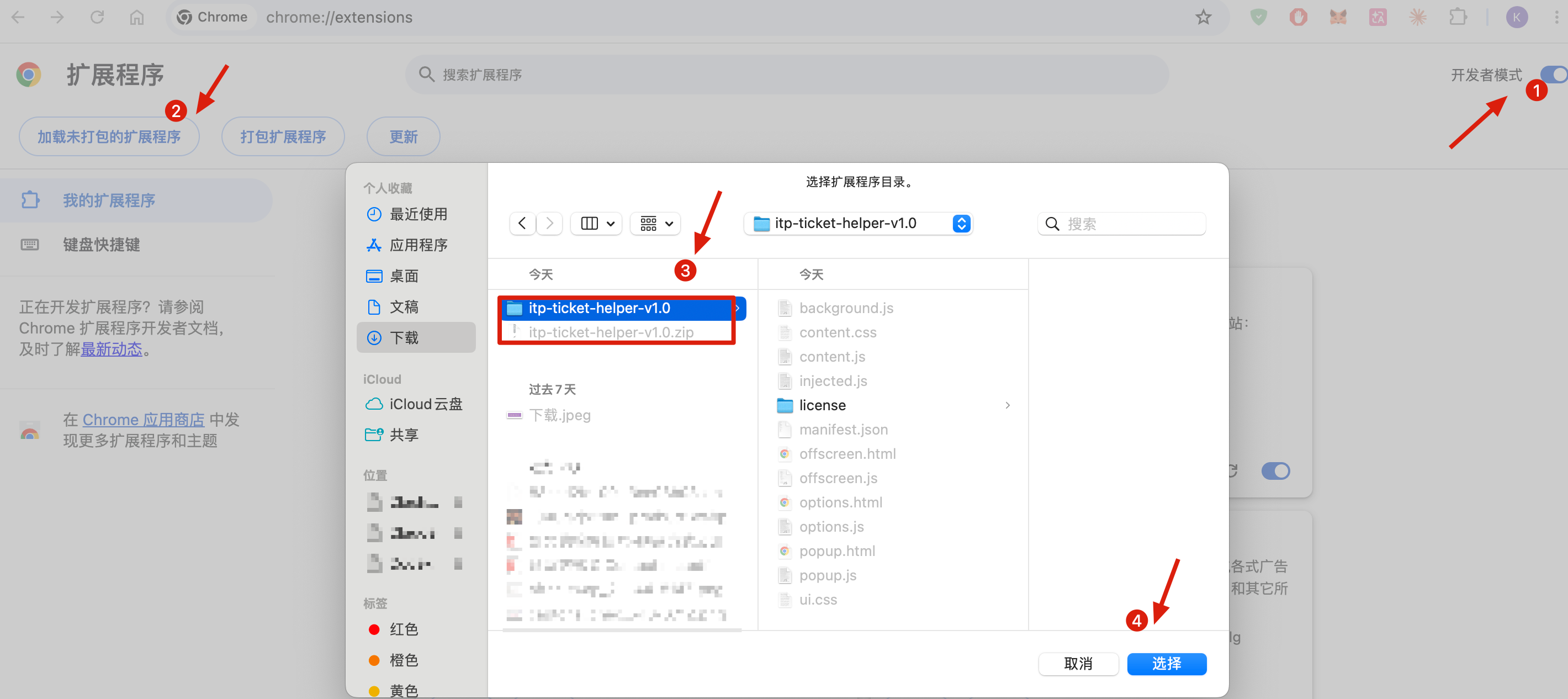
chrome://extensions/in the address bar. - Turn on Developer mode (top-right), then click Load unpacked.
- Select the unzipped folder.
- You’ll now see ITP Ticket Helper in your extensions.
2. Activate (required)
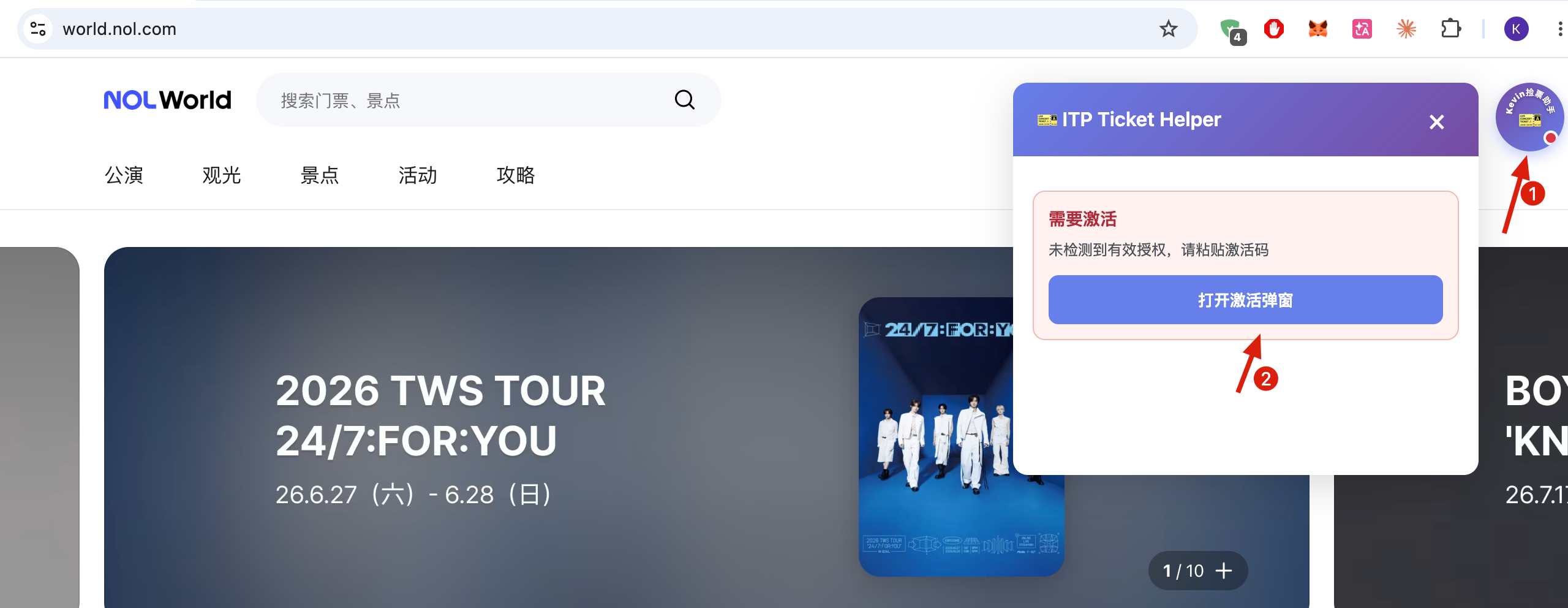
- Open any Interpark / NOL page and click the extension icon in the top-right toolbar.
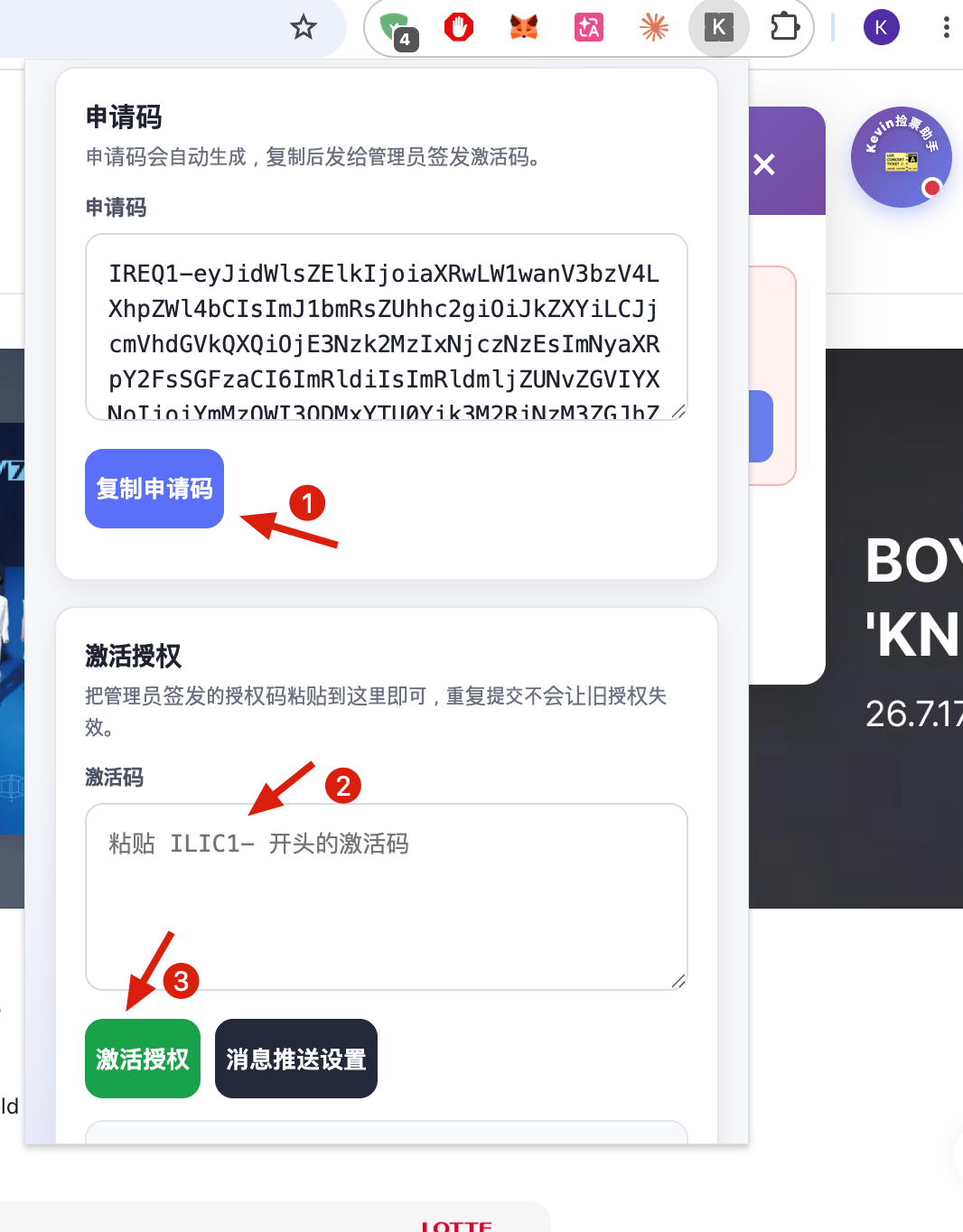
- Copy the request code from the popup and send it to me (all my contact methods are on the About / Contact page).
- Paste the activation code you receive and click Activate — once it shows Activated, you’re ready.
The toolbar popup is only for activation. All the actual ticketing controls live in the purple round button at the bottom-right of the Interpark page — not in this popup.
3. Supported sites
If your ticket link opens to one of these domains, the extension hooks in:
globalinterpark.com(Interpark Global)interpark.com(some events)world.nol.com(NOL’s new international entry)
4. How to run a hunt
-
Open the event page.
-
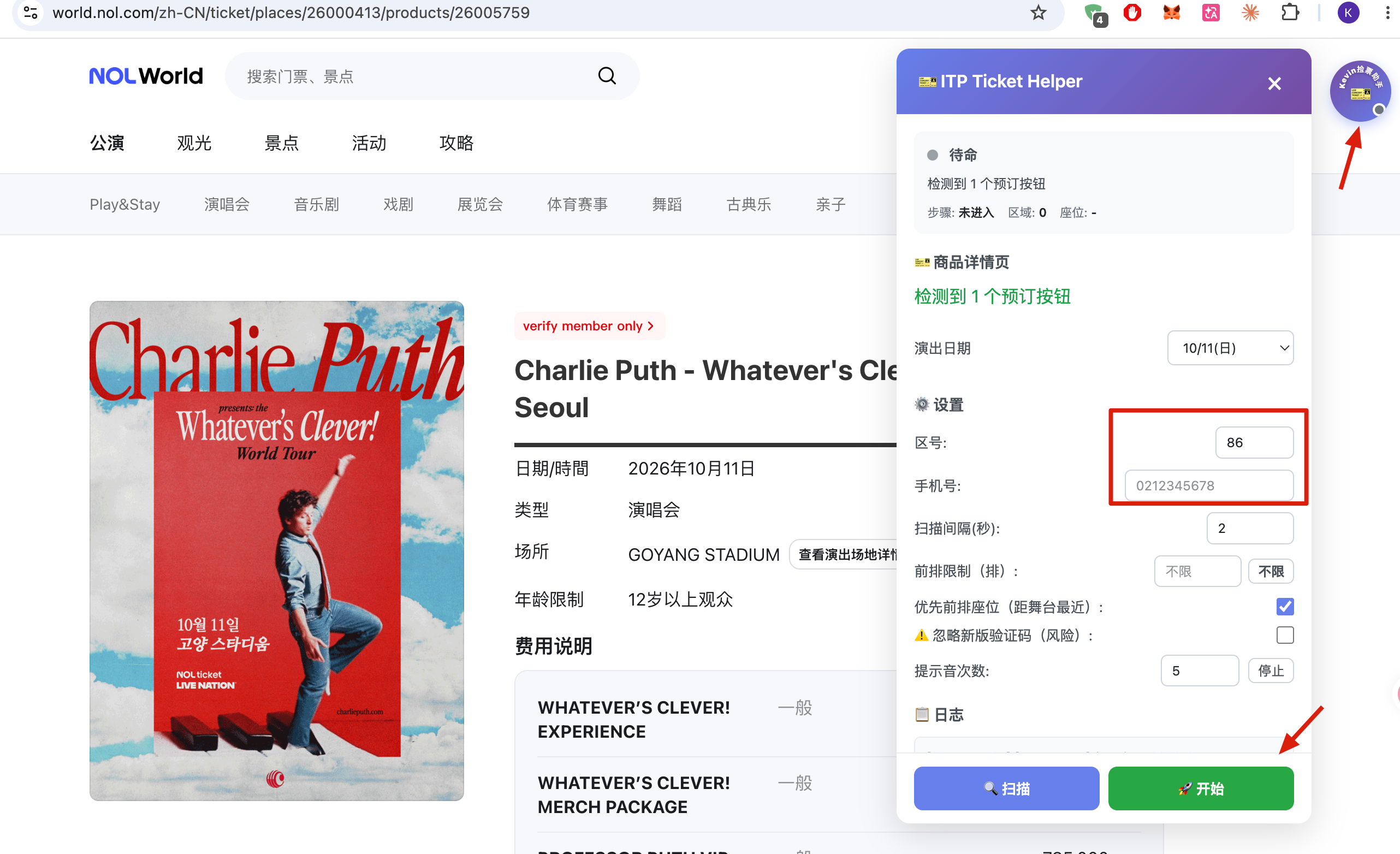
Click the purple round button at the bottom-right to open the main panel.
Purple in-page button -
Tick the zones you want — 4–6 zones is the sweet spot, with upper-level / mountain seats as your safety net (they get re-released most often).
Selecting zones -
Set your preferences:
- Prefer seats closer to the stage
- A max front-row limit (so you don’t accidentally lock VIP row 1)
- Filter by preferred session/time
Preference settings -
Click Start to begin auto-scanning for open seats.
Scanning -
On a hit, it auto-locks the seat, handles the captcha, and advances toward payment.
Seat locked
5. Three captcha types, handled automatically
| Type | How it’s handled |
|---|---|
| Old numeric / letter code | Auto OCR recognition and fill |
| Slider captcha | Auto-solved and dragged |
| Turnstile / new text code | Auto-attempts to pass; only plays an alert sound for manual help after several failed tries |
In most cases the extension clicks through Turnstile on its own — as long as the ticketing tab stays in the foreground and isn’t switched away, you usually don’t need to do anything. Only if it fails several auto-attempts will it sound an alert for you to click once manually. Keep your browser and system sound un-muted while hunting, so you actually hear it if a human is needed.
6. Seat-lock alerts to your phone
You can’t watch the screen forever — and cancellation tickets love to drop while you’re away from the desk. The moment a seat is locked, the extension pushes to whichever channels you’ve configured:
- Telegram (easiest for international fans)
- Feishu (Lark)
- WeChat Work
- DingTalk
Always hit “Test notification” once after setup — don’t discover a broken webhook after you finally lock a seat. Many people don’t miss the ticket; they miss the alert. Make sure your phone notification sound isn’t silenced and your computer alert sound works too.
For Telegram, create a bot via @BotFather, grab the bot token, send your bot a message, and use your chat ID — then paste both into the settings and test.
7. After the lock — automation continues
Once a seat is locked, the extension keeps helping:
- Auto-advances to the payment page
- Auto-fills your country code + phone number into the delivery info
Auto-advance ≠ auto-pay. The actual payment (credit card, 3-D Secure, PayPal) is still yours to click. Do it immediately, then confirm the order exists on your member/order page before screenshotting.
8. Zone preferences are remembered per event
Your zone selections are saved per event (by GoodsCode), so different shows don’t overwrite each other. You can prep strategies for several concerts at once and just hit start when each on-sale opens.
9. Common gotchas
- Can’t find the start button? You’re looking at the toolbar popup. The controls are the purple round button at the page’s bottom-right.
- Turnstile keeps failing to auto-pass? Make sure the ticketing tab isn’t in the background; if you can’t hear the alert, check that your browser/system isn’t muted.
- New popups won’t open? Your browser is blocking Interpark’s pop-ups. Pre-allow pop-ups for
globalinterpark.com/interpark.com/world.nol.com. - Unstable overseas connection? Use a wired connection during the hunt, don’t toggle VPNs mid-session, and don’t run downloads that eat bandwidth.